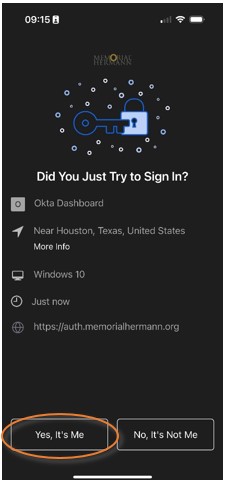
On your mobile device:
- Go to the App Store (iOS) or Google Play Store (Android) and install Okta Verify.
- If you are on an IOS device, you will need to disable “Private Relay” by following the instructions provided here.
- If you have a personal VPN set up on your mobile device, please also turn this off.
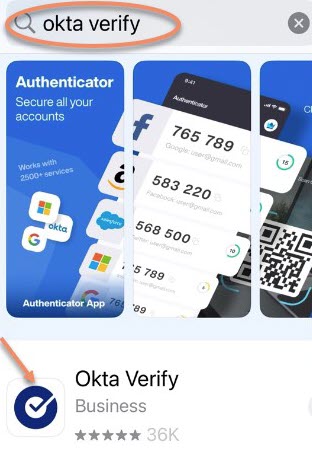
On your computer:
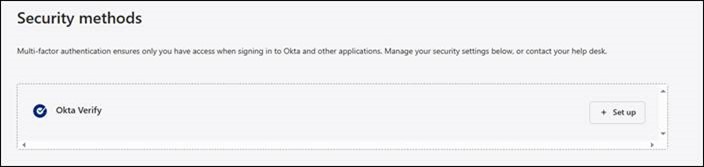
- Log into https://auth.memorialhermann.org/account-settings/security
- Under "Security Methods" at the bottom right, locate Okta Verify and click Set Up.
- Once you have completed your authentication process, a QR code will show up on your computer's screen.
- Keep this screen open as you follow the next steps on your mobile device.
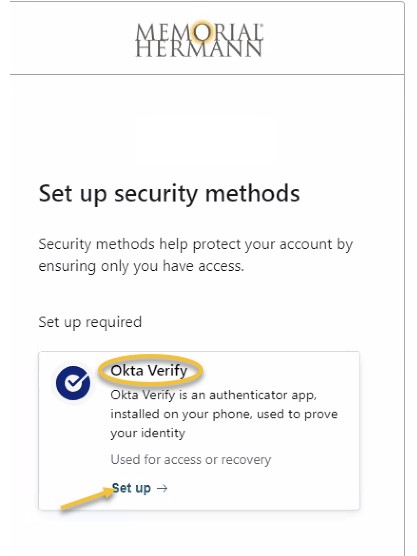
On your mobile device:
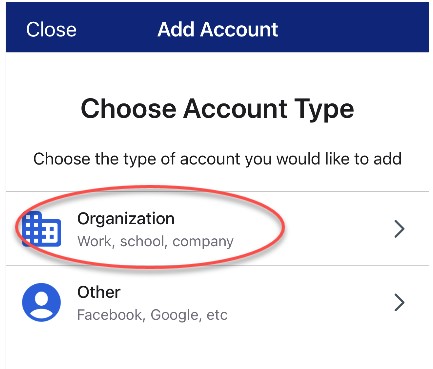 Open the Okta App and select Add Account
- For Account Type, select Organization
- To complete the install and enrollment, click on Ready to Scan and use your mobile device to scan the QR code from your computer monitor.
- To use the QR code:
- Launch your phone’s camera app.
- Aim camera at the QR code on the computer screen.
- Your camera will display a link on the phone screen. Click the link.
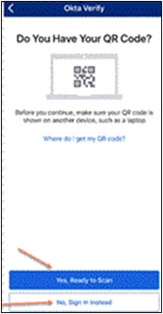
- To use the QR code:
- You will be prompted to allow push notifications and/or biometrics.
- Push notifications should be allowed.
- Biometrics are optional but recommended.
Okta Verify will now display as a security method when you try to access your account.
- Enter a Code means you will key a code into the system.
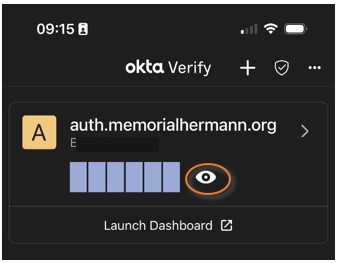
- Push Notification will show a screen requesting confirmation.